


All of our themes come with an "Image Gallery" page template which allows you to display photos/images like this example.

How to create a gallery
To create a gallery page, follow the steps below:
1. Create a new page in the "Pages" section of your dashboard:

2. Look for the "Page Attributes" box on the right side of the screen. In the "Template" option to "Image Gallery".

3. Click "Publish" or "Save Draft" to save the page.

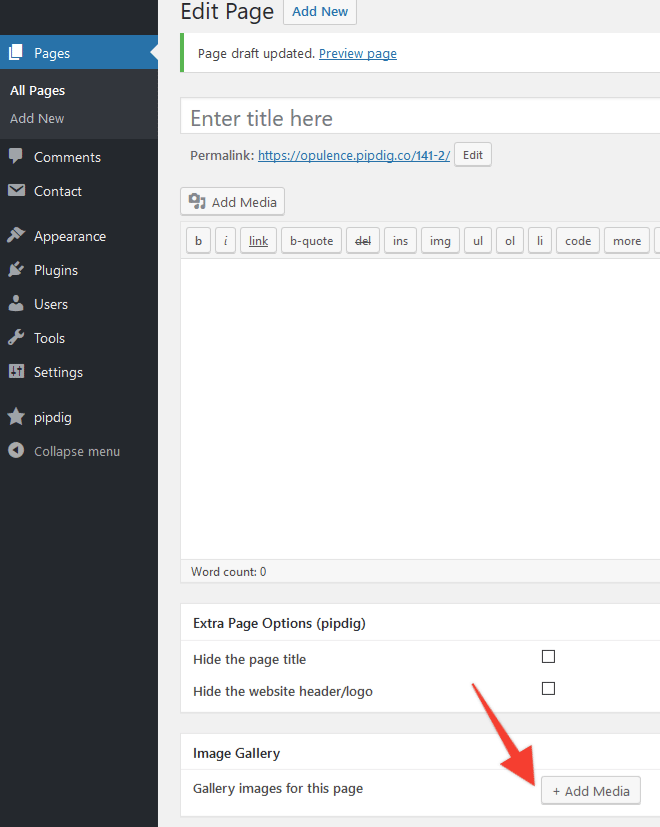
4. You can now use the "Image Gallery" options near the bottom of the page to upload any images:
How to add a gallery to a blog post
Separate to the Gallery features mentioned above, it is also possible to add a gallery of images to a blog post by using the "Gallery" block. This is available from the list of blocks in the post editor:

Affiliate Disclaimer: I sometimes insert third-party links to products and services to help cover the costs of running this website. I only recommend products that I have used and think are worth trying. Your free will ❤ Donation will be appreciate 😍
Follow me on: Facebook | Twitter | Instagram | Linkedin | Tiktok | YouTube
Disclaimer: The materials on this website are given for general information only and do not guarantee 100% solution. I accepts no responsibility for loss or liability occasioned to any person acting or refraining from acting as a result of material contained in this website.
Post a Comment